
Smart Plugs from Setup to Daily Use

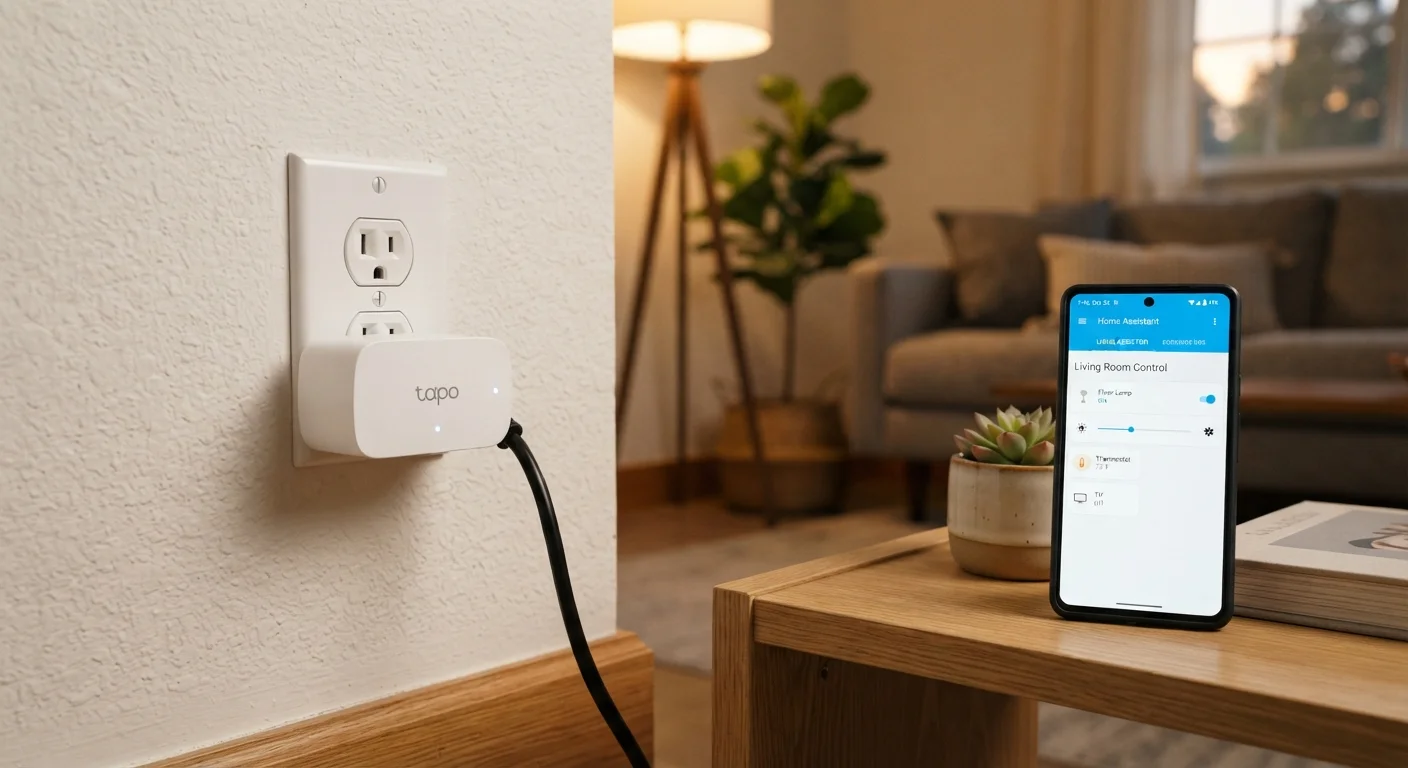
Photo: AscendWit.com | Explore Engaging Blogs. editorial
Key Takeaways
- A smart plug fits into any standard wall outlet and gives you remote control over whatever is plugged into it.
- You need a 2.4 GHz Wi-Fi network and a smartphone to complete setup-no professional installation required.
- Most smart plugs are paired through a companion app in under five minutes.
- Schedules let appliances turn on or off automatically, saving you effort and potentially reducing energy waste.
- Smart plugs work with many voice assistants, enabling hands-free control once connected.
What Is a Smart Plug and How Does It Work?
A smart plug is a small adapter that fits between your wall outlet and an appliance's power cord. It acts as a remotely controlled on/off switch, letting you power devices up or down from a smartphone app-even when you're not in the room.
Inside the plug is a Wi-Fi radio that connects to your home network. Once paired, it receives commands from a companion app running on your phone. That same connection is what allows scheduling, energy monitoring (on models that support it), and voice-assistant control.
2.4 GHz Wi-Fi
A radio frequency band used by Wi-Fi routers. It travels farther through walls than the 5 GHz band, which is why most smart home devices rely on it.
Pairing
The one-time process of introducing a smart device to your Wi-Fi network and app so they can communicate.
Companion app
A smartphone application made by the device's manufacturer that lets you control and configure the smart plug.
Standby power
The small amount of electricity an appliance draws even when it's switched off but still plugged in, sometimes called 'vampire power.'
Voice assistant integration
A feature that lets you control the smart plug by speaking commands to a device like a smart speaker, without touching the app.
Because all the intelligence lives in the plug itself, the appliance you connect doesn't need to be a smart device. A standard floor lamp or a basic coffee maker becomes schedule-able the moment you run it through a smart plug. If you're new to home networking concepts, the Home Networking From Scratch guide offers useful background before you dive in.
What You Need Before You Start
Setup is straightforward, but a few things need to be in place first:
- A 2.4 GHz Wi-Fi network. Most home routers broadcast on both 2.4 GHz and 5 GHz bands. Smart plugs almost universally use 2.4 GHz because it has better range through walls. If you're unsure how your router is configured, our router setup guide walks through the basics.
- A smartphone. You'll download the plug's companion app and use it for pairing and daily control. Not yet comfortable with smartphones? The first-time smartphone owner's guide is a good starting point.
- Your Wi-Fi password. Have it ready-you'll enter it during app setup.
- An available outlet. The plug needs to insert fully without being blocked by furniture or adjacent plugs.
Place the Plug Within Strong Wi-Fi Range
Setting Up Your Smart Plug Step by Step
While app interfaces differ across manufacturers, the general process follows the same pattern:
- Download the companion app. The plug's packaging lists the app name; search for it in the App Store or Google Play.
- Create or sign in to an account. Most apps require an email and password to store your device settings.
- Plug in the smart plug. Insert it into a wall outlet. An indicator light-usually blinking-signals it's in pairing mode.
- Add a device in the app. Tap the option to add a new device. The app will ask you to confirm the plug is in pairing mode.
- Enter your Wi-Fi credentials. Select your 2.4 GHz network and type your password. The app then pushes those credentials to the plug.
- Wait for confirmation. The indicator light typically turns solid when the connection succeeds. The app shows the plug as online.
- Test it. Use the app's on/off toggle to confirm the plug responds. Then plug in a lamp or phone charger to verify power is controlled correctly.
Pairing Mode Resets Vary by Model
Building Schedules and Routines
Scheduling is where smart plugs earn their usefulness. Most apps let you set time-based rules directly from the device's settings screen:
- Fixed schedules: Turn a device on at 7:00 a.m. and off at 10:00 p.m. every day-useful for lamps or fans.
- Countdown timers: Run a device for a set number of minutes, then cut power automatically.
- Sunrise/sunset rules: Some apps tie schedules to your location's daylight hours, so outdoor lights come on at dusk without manual adjustment.
If you've connected the plug to a voice assistant such as Amazon Alexa or Google Home, you can also build multi-step routines. For example, saying a phrase might turn on a lamp and start a coffee maker at the same time.
Smart plugs pair naturally with the broader idea of automating repetitive tasks. The same principle applies in personal finance-if you're curious how automation works in other parts of daily life, the guide on automating savings explores that concept. For those expanding their smart home further, smart speakers are a natural companion device to explore next.
Common Issues and How to Fix Them
Even straightforward devices run into snags. Here are the most frequent ones and what to try:
- Plug won't appear in the app during setup
- Confirm your phone is connected to the 2.4 GHz band, not 5 GHz, during pairing. Some routers use the same name for both bands-check your router settings if unsure.
- Plug shows as offline after working fine
- Unplug the device for ten seconds and reinsert it. Router reboots can also drop smart-device connections; a quick power cycle of the plug usually restores it.
- App can't find the device on a new phone
- Log in to the same app account you used originally. Your devices should sync automatically once you're signed in.
- Voice assistant doesn't recognize the plug
- In the voice assistant's app, look for the option to discover or add devices. You may need to link your smart-plug account within the assistant's settings.
Check Wattage Before Connecting Appliances
Frequently Asked Questions
The content on this site is for informational purposes only and is not a substitute for professional advice. Always consult a qualified professional for guidance specific to your situation.