
Everything First-Time Smartphone Owners Need to Know

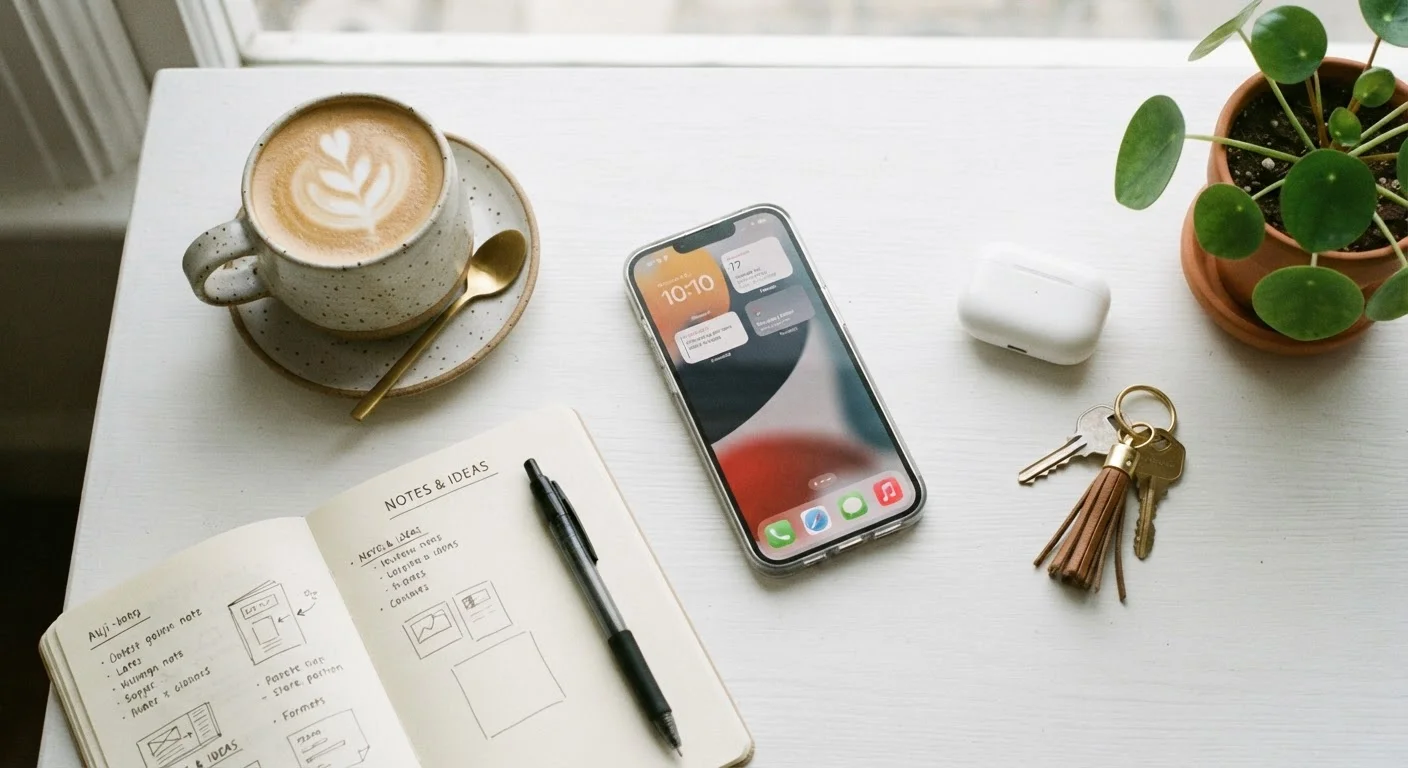
Photo: AscendWit.com | Explore Engaging Blogs. editorial
Key Takeaways
- A smartphone is a handheld computer that also makes calls - understanding this changes how you use it.
- Setting up a Google or Apple account early is essential for downloading apps and keeping data backed up.
- Connecting to home Wi-Fi reduces your cellular data usage and speeds up most tasks.
- Built-in security features like screen locks and app permissions protect your personal information.
- Most smartphones come with everything a beginner needs - you don't need extra accessories to start.
Understanding What a Smartphone Actually Does
A smartphone is, at its core, a small computer that fits in your pocket - one that also happens to make phone calls. Beyond calls and texts, it can browse the internet, take photos, play music, run navigation apps, and connect to thousands of other tools called apps (short for applications). Understanding this helps set realistic expectations: learning a smartphone is a lot like learning a new computer, and it's perfectly normal to take a few days to feel comfortable.
There are two main types of smartphones: Android and iPhone (iOS). Android phones are made by a variety of manufacturers and tend to offer more variety in size and price. iPhones are made exclusively by Apple. Both types work similarly for everyday tasks. If you're exploring other connected devices in your home, the Everyday Gadgets hub covers a wide range of beginner-friendly tech guides.
Operating system
The core software that runs your phone - Android and iOS are the two main ones. It controls how everything looks and works, much like Windows or macOS does on a computer.
App
A small program designed to do a specific task - like maps, weather, or banking. Apps are downloaded from your phone's app store.
Cellular data
Internet access provided by your phone carrier over a wireless network, similar to how a radio signal works. It's used when you're not connected to Wi-Fi and is usually limited by your monthly plan.
App permissions
Settings that control what parts of your phone an app is allowed to access - such as your camera, contacts, or location. You can review and change these at any time in your phone's settings.
Phishing
A scam where someone pretends to be a trusted company or person in order to trick you into giving up your password or personal details, often through a fake link in a text or email.
Screen lock
A security feature that requires a PIN, password, pattern, or fingerprint to unlock your phone, preventing unauthorized access if it's lost or stolen.
Setting Up Your Phone for the First Time
When you first turn on a new smartphone, it will walk you through a setup process. The most important step is creating or signing in to an account - a Google account on Android or an Apple ID on iPhone. This account lets you download apps, back up your photos and contacts, and recover your phone if something goes wrong. Use an email address you have regular access to.
During setup, you'll also be asked to set a screen lock - a PIN, password, pattern, or fingerprint that prevents others from accessing your phone. Choose something memorable but not obvious, like a birthday that strangers could find online.
Back Up Your Phone From Day One
Once setup is complete, connect to your home Wi-Fi network right away. If you need help setting up or understanding your home internet, our guide to home networking from scratch is a useful starting point.
Navigating the Basics: Calls, Texts, and Apps
The home screen is the main screen you see when you unlock your phone. Icons here represent your apps - tap one to open it. You can swipe left or right to see additional screens, and swipe down from the top to access quick settings like Wi-Fi, brightness, and volume.
Making a call is straightforward: open the Phone app, type a number, and tap the call button. For text messages, open the Messages app, choose a contact, type your message, and hit send. These two apps are always pre-installed.
To add new apps, open your phone's app store (Google Play or the App Store), search by name, and tap Install. Stick to well-known apps at first, especially those from organizations or services you already use, such as your bank or a news source you trust. For a broader reference of terms you'll encounter in menus and settings, see The Everyday User's Glossary of Gadget Terms.
Staying Safe and Protecting Your Information
Smartphone security doesn't require technical knowledge - your phone already has the tools built in. The most important habit is keeping your screen lock active so that only you can unlock the device. Beyond that, pay attention to app permissions: when an app asks for access to your camera, microphone, or location, only approve it if the request makes sense for what the app does.
Be cautious of unsolicited text messages or emails asking you to tap a link or enter a password. These are common tactics used to steal information, a practice known as phishing. Legitimate companies generally won't ask for sensitive details through unexpected messages.
Don't Share Your Screen Lock or Passwords
For a deeper look at settings most people overlook, Smartphone Security Settings Most People Never Touch walks through practical steps you can take right now to protect your data.
Connecting to Wi-Fi and Managing Data
Your smartphone connects to the internet in two ways: through your carrier's cellular network (using your data plan) or through a Wi-Fi network. Wi-Fi is faster, free at home, and doesn't count against your monthly data limit, so it's worth connecting whenever you're at home or somewhere you trust.
To connect to Wi-Fi, swipe down from the top of your screen and tap the Wi-Fi icon, or go to Settings > Wi-Fi. Choose your home network from the list and enter the password - usually found on the back of your router. For help understanding your home setup, see our guide to setting up a home router without calling tech support.
To check how much cellular data you've used, go to Settings > Cellular (iPhone) or Settings > Network > Data Usage (Android). If you're regularly running low, streaming video and music on cellular are typically the biggest culprits - saving those activities for Wi-Fi makes a meaningful difference. For a broader look at home internet options, the Home Internet hub offers straightforward explanations of plans and speeds.
Google Account Help Center
Google's official support pages walk you through setting up your account, managing backups, and recovering access - useful for Android users getting started.
Apple Support: iPhone User Guide
Apple's free online user guide covers every built-in feature of the iPhone in plain language, from initial setup to accessibility options.
Consumer Reports: Smartphone Basics
An editorially independent overview of smartphone features and considerations, written for general consumers without technical backgrounds.
Frequently Asked Questions
The content on this site is for informational purposes only and is not a substitute for professional advice. Always consult a qualified professional for guidance specific to your situation.