
Smartphone Security Settings Most People Never Touch

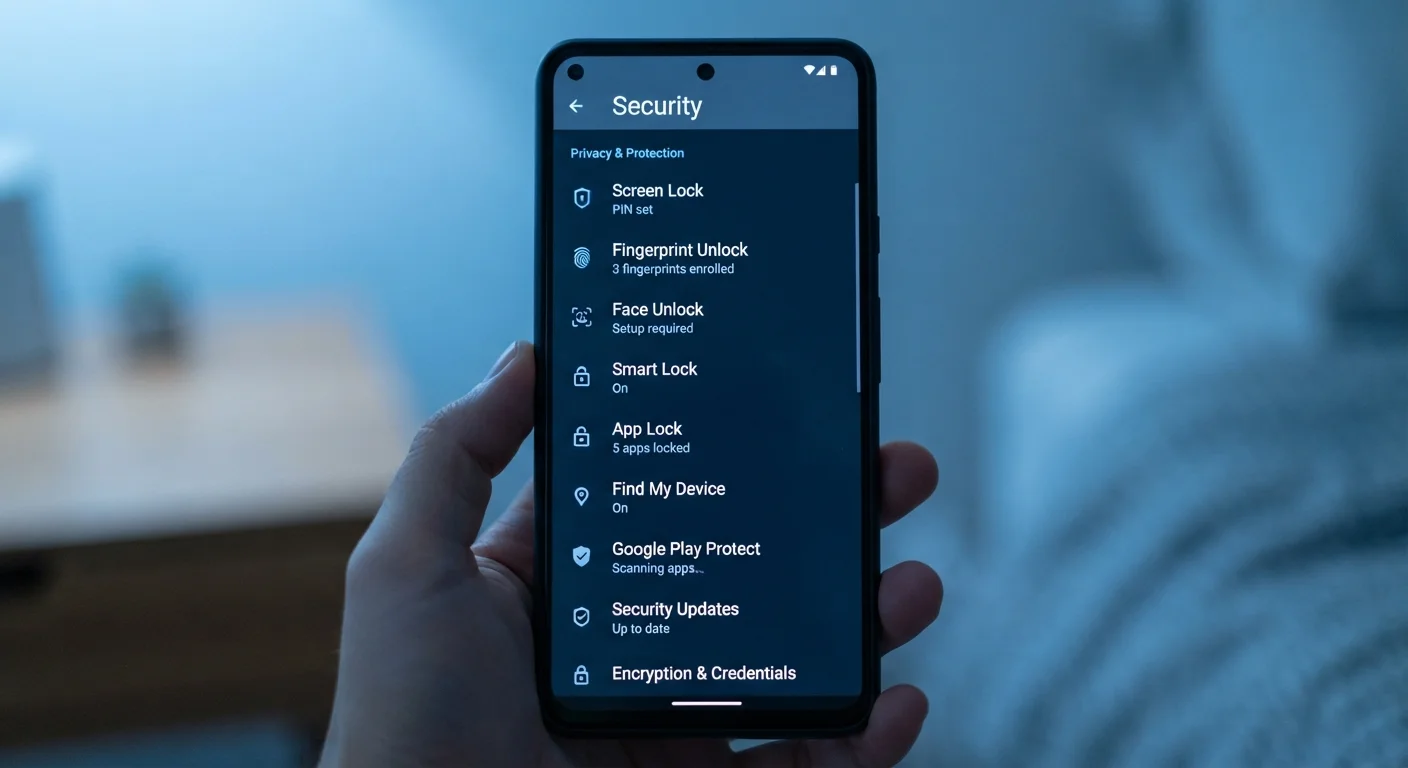
Photo: AscendWit.com | Explore Engaging Blogs. editorial
Key Takeaways
- App permissions can silently grant access to your camera, microphone, and location - review them regularly.
- Two-factor authentication adds a critical second layer of protection beyond your password or PIN.
- Biometric locks are convenient, but a strong backup PIN or passcode is equally important to set up.
- Lock screen notifications can expose sensitive information to anyone who glances at your phone.
- Automatic software updates patch known security vulnerabilities - keeping them on is one of the simplest protections available.
The Settings Most People Skip
Your smartphone is one of the most personal devices you own. It holds your banking apps, photos, messages, health data, and more. Yet most people set a passcode, maybe add a fingerprint, and never revisit security settings again.
The good news: both Android and iPhone come loaded with built-in protections that don't cost anything extra to use. They just require a few minutes to find and enable. Whether you're a longtime smartphone owner or just getting started - see our beginner's guide to smartphones for context - the settings below are worth a look.
App Permissions: Audit What You've Already Allowed
Every app you install requests access to parts of your phone - your camera, microphone, location, contacts, or storage. Many people tap "Allow" out of habit and forget about it. Over time, you may have dozens of apps with permissions they don't actually need to function.
On both iPhone and Android, you can view a full list of permissions by category. Go to Settings > Privacy (iPhone) or Settings > Privacy > Permission Manager (Android) and work through each category. Ask yourself: does this app genuinely need access to my microphone? If not, revoke it. You can always re-grant access later if the app needs it for a specific feature.
Revoking unnecessary permissions is one of the most impactful privacy moves you can make.
Two-Factor Authentication on Your Accounts
Two-factor authentication (2FA) means that logging into an account requires two things: your password, and a second verification step - usually a code sent to your phone or generated by an authenticator app. Even if someone learns your password, they can't get in without that second factor.
Most major apps - email, banking, social media - offer 2FA. Look for it under each app's account security settings, not your phone's settings. Authenticator apps (which generate time-sensitive codes) are generally more secure than receiving codes via text message, though either is far better than no 2FA at all.
2FA stops most unauthorized logins, even when a password has been stolen.
Lock Screen Notifications: Control What Strangers Can See
By default, many phones show full notification previews on the lock screen - meaning anyone who picks up your phone can read your texts, email subjects, or banking alerts without unlocking it. This is a small but real privacy exposure.
You can set notifications to show only the app name (no content), or nothing at all, until the phone is unlocked. On iPhone: Settings > Notifications > Show Previews. On Android, this varies by manufacturer but is typically found under Settings > Notifications > Lock Screen. This is especially worth configuring if you travel frequently - see our guide to keeping devices safe while abroad for more context.
Your lock screen can reveal sensitive messages to anyone who glances at your phone.
Biometric Settings and Backup Passcodes
Face ID and fingerprint unlock are convenient - but they're not foolproof. Biometric data can be bypassed in certain circumstances, and the true foundation of your phone's security is the backup PIN or passcode that activates when biometrics fail.
A six-digit PIN is the minimum. A longer numeric code or an alphanumeric passphrase is meaningfully harder to guess. Avoid obvious patterns like 123456, your birth year, or repeating digits. On iPhone, find this under Settings > Face ID & Passcode; Android users can check Settings > Security > Screen Lock.
A strong backup passcode is just as important as the biometric lock sitting in front of it.
Automatic Software Updates
Software updates often sound like minor housekeeping, but many include security patches - fixes for known vulnerabilities that attackers can otherwise exploit. Delaying updates leaves those openings in place longer than necessary.
Both iPhone and Android support automatic updates. On iPhone, go to Settings > General > Software Update > Automatic Updates. On Android, the path varies slightly by manufacturer but is typically under Settings > System > System Update. Enabling automatic updates is one of the lowest-effort, highest-impact security habits available. This principle applies broadly to all your connected devices - it's a theme covered in depth in our complete guide to smartphone ownership.
Automatic updates silently patch the security gaps attackers count on you to leave open.
Find My Device and Remote Wipe
If your phone is lost or stolen, a remote wipe feature lets you erase all data on it from another device - preventing whoever has it from accessing your accounts, photos, and files. Both platforms offer this built in.
iPhone users can enable this through Settings > [your name] > Find My > Find My iPhone and toggle on "Send Last Location." Android users should check that Find My Device is on under Settings > Security. Neither feature requires a subscription and both work as long as the phone has an internet connection. It's worth confirming these are active before you need them - not after.
Remote wipe is insurance you hope you never use - but it's far easier to enable before a loss.
Make These Settings Work for You
None of these changes require technical expertise. Each one lives in your phone's standard Settings app, usually under "Privacy," "Security," or "Biometrics." Together, they significantly reduce the chance that a lost phone, a sketchy app, or a compromised account can cause lasting harm.
Start With One Setting at a Time
For a broader view of how these habits extend to other devices and your home Wi-Fi, the overlooked gadget security habits guide and our article on keeping your home network secure are both worth reading alongside this one.
The content on this site is for informational purposes only and is not a substitute for professional advice. Always consult a qualified professional for guidance specific to your situation.