
Gadget Security Habits That Most People Skip

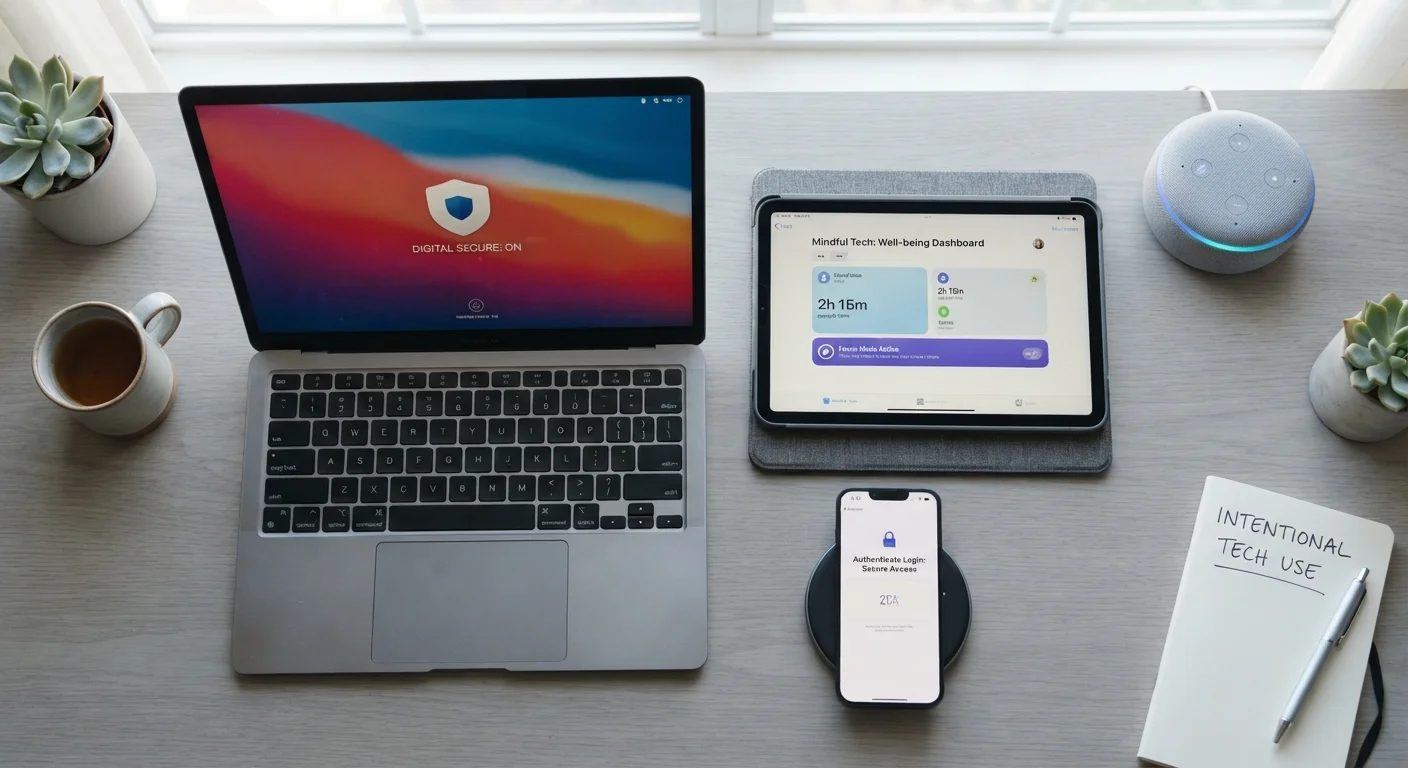
Photo: AscendWit.com | Explore Engaging Blogs. editorial
Key Takeaways
- Firmware and software updates patch real vulnerabilities - delaying them leaves known gaps open.
- Default passwords on routers and smart home devices are a widely exploited security weakness.
- App permissions, auto-connect Wi-Fi, and lock screen settings often go unchecked but carry real risk.
- Physical access to an unlocked device can bypass most digital security measures instantly.
- Two-factor authentication is one of the most effective protections most people still haven't enabled.
The Security Steps That Usually Get Skipped
Most people know to use a password. Fewer people actually follow through on the security habits that do the most practical work. Device security isn't a single setting - it's a collection of small, ongoing decisions that individually seem minor but together create meaningful protection against common threats like account takeovers, data theft, and unauthorized access.
The habits below aren't advanced or technical. They're the steps that security researchers consistently flag as underused, and they apply to the gadgets most Americans use every day - phones, laptops, home routers, and smart home devices. For a deeper look at protecting your phone specifically, the smartphone security settings guide covers built-in options most users never open.
Update firmware on your router and smart devices
Software updates on phones and laptops get most of the attention, but the firmware (the built-in software) on routers, smart speakers, security cameras, and other connected devices is updated far less often - and far less automatically. Manufacturers release firmware updates specifically to patch security vulnerabilities, and an unpatched router is one of the most common entry points for home network intrusions.
Check your router's admin interface (usually accessible by typing the router's IP address into a browser) for a firmware update option, and look for a setting to enable automatic updates if available. Do the same for any smart home devices through their companion apps.
An unpatched router is one of the most common entry points for home network intrusions.
Replace default passwords immediately
Routers, smart cameras, and many other connected devices ship with default usernames and passwords that are publicly listed in manufacturer documentation - meaning anyone who knows the device model can look them up. Changing these defaults is a fundamental step that a significant share of households still skip.
Use a unique, reasonably complex password for each device's admin interface. A password manager can store these so you don't need to memorize them. The home internet hub has further guidance on router settings worth reviewing.
Default passwords are publicly listed in manufacturer docs - easy for anyone to find.
Enable two-factor authentication on key accounts
Two-factor authentication (2FA) requires a second verification step - typically a code sent to your phone or generated by an authenticator app - in addition to your password. Even if someone obtains your password through a data breach or phishing attempt, 2FA blocks them from accessing your account without that second step.
Enable it on email accounts first (since email is used to reset almost everything else), then on financial accounts and any service that stores payment information. Authenticator apps are generally more secure than SMS codes, though either is significantly better than no 2FA at all.
Even a stolen password can't get someone in if two-factor authentication is active.
Audit app permissions regularly
Apps frequently request access to your microphone, camera, location, and contacts - and once granted, those permissions stay active unless you revoke them. An app you downloaded two years ago may still have location access running in the background. Both iOS and Android allow you to review permissions by app or by category (e.g., "which apps have microphone access?") in the Settings menu.
A practical rule: if an app doesn't have an obvious reason to need a permission, revoke it. A flashlight app doesn't need your contacts. A recipe app doesn't need your location. For a broader look at smartphone settings worth knowing, the smartphones hub is a useful starting point.
Permissions granted years ago stay active - revisiting them periodically is worthwhile.
Turn off auto-connect on Wi-Fi and Bluetooth
Most devices are set to automatically reconnect to any known Wi-Fi network and to keep Bluetooth discoverable in the background. In practice, this means your phone may silently connect to a public hotspot that shares a name with one you've used before - including ones set up deliberately to intercept traffic, a technique sometimes called an "evil twin" attack.
Disable the "auto-join" feature for public or infrequently used networks, and turn Bluetooth off when you're not actively using it. These are small friction costs with a real security benefit, especially in airports, hotels, and coffee shops.
Your device may silently join a spoofed network that shares a name you've used before.
Use a strong lock screen and auto-lock timeout
Physical access to an unlocked device bypasses most digital protections entirely. Someone who picks up an unlocked phone can access emails, payment apps, saved passwords, and accounts in seconds - no hacking required. A PIN, password, or biometric lock (fingerprint or face recognition) is the baseline defense, but the auto-lock timeout matters just as much.
Set your screen to lock after 30 seconds to one minute of inactivity. Many people leave this at five minutes or longer, which creates a meaningful window of exposure if a device is left unattended, lost, or briefly stolen.
An unlocked phone left for 30 seconds is enough time for real damage to be done.
Building These Into Your Routine
None of these habits require technical expertise - they require attention, done once or revisited occasionally. A good approach is to treat device security the way you'd treat a smoke detector check: brief, infrequent, and genuinely important. Set a reminder every few months to review app permissions, check for firmware updates on your router, and confirm that two-factor authentication is active on your most sensitive accounts.
Make It a Quarterly Habit
If you travel with your devices, the stakes shift slightly - public Wi-Fi, unfamiliar charging ports, and physical exposure all increase risk. The guide to keeping devices safe while traveling covers habits worth adding before any trip. And for the home network that your gadgets connect to, maintaining a secure home network is worth reading alongside this article.
The content on this site is for informational purposes only and is not a substitute for professional advice. Always consult a qualified professional for guidance specific to your situation.