
Wi-Fi Dead Zones: Why They Form and How to Shrink Them

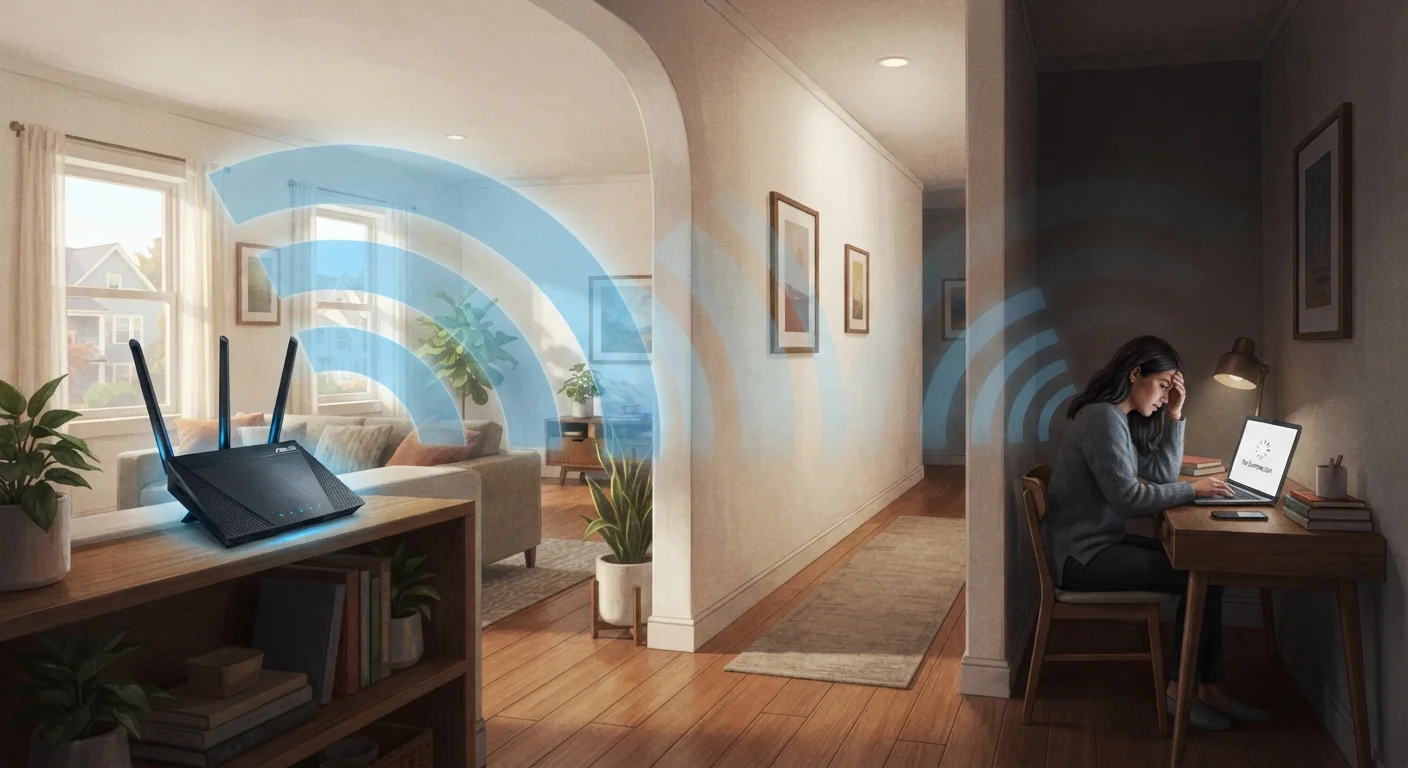
Photo: AscendWit.com | Explore Engaging Blogs. editorial
Key Takeaways
- Router placement is the single biggest factor in where dead zones form at home.
- Building materials like concrete, brick, and metal significantly block Wi-Fi signals.
- Neighboring networks and household electronics can interfere with your signal.
- Mesh systems and Wi-Fi extenders address dead zones through different methods with different trade-offs.
- Most dead zone problems can be improved without upgrading your internet plan.
What Actually Causes a Wi-Fi Dead Zone
A Wi-Fi dead zone is any spot in your home where the wireless signal becomes too weak to use reliably. Despite how random they can feel, dead zones almost always have a traceable cause - and understanding it is the first step toward fixing it.
Wi-Fi signals travel outward from your router in all directions, similar to light from a lamp. Like light, they weaken with distance and get absorbed or reflected by obstacles. The most common culprits are building materials: concrete and brick walls can cut signal strength dramatically, while metal objects - appliances, filing cabinets, even foil-backed insulation - act almost like mirrors, bouncing signals in unintended directions.
Floor-to-floor signal loss is also significant. A router on the ground floor often struggles to cover upper bedrooms because signals degrade passing through wooden joists, plumbing, and subflooring. Exterior walls tend to be thicker than interior ones, making corners and garage-adjacent rooms common dead zone locations.
Interference from other devices compounds the problem. Microwave ovens, baby monitors, cordless phones, and neighboring Wi-Fi networks all compete for the same radio frequencies. If you live in an apartment building or densely packed neighborhood, channel congestion alone can noticeably weaken performance in parts of your home. See why interference spikes in the evening for how congestion patterns affect your signal over the course of a day.
Common Mistakes That Make Dead Zones Worse
Many households unknowingly create or deepen their own dead zones. Recognizing these errors is often the fastest path to better coverage.
Placing the router in a corner, closet, or behind the TV.
Keeping an aging router that can no longer handle the number of connected devices in the home.
Ignoring wireless channel congestion, especially in apartment buildings or dense neighborhoods.
Assuming that buying a faster internet plan will fix dead zones.
Placing the router near microwaves, cordless phones, or other electronics that share the 2.4 GHz frequency.
If you notice symptoms like dropped video calls or inconsistent speeds that seem tied to specific rooms, those are often signs the setup itself - not your internet plan - needs attention. Learn the signs your home internet setup needs a look before assuming the problem is with your provider.
Practical Ways to Shrink or Eliminate Dead Zones
Once you understand what's causing a dead zone, you have several realistic options to address it.
~30%
Signal loss through a single interior wall
Industry technical references estimate a standard drywall interior wall can reduce Wi-Fi signal strength by roughly 30%, with denser materials like concrete causing significantly more attenuation.
25+
Average connected devices per US household
According to Parks Associates research, the average US broadband household has surpassed 25 connected devices - a figure that strains older routers not designed for that load.
Reposition your router first. Moving the router to a more central location - ideally elevated, away from walls and metal objects - is free and often produces an immediate improvement. Our guide to setting up a home router covers placement tips in detail.
Switch frequency bands if your router supports it. Most modern routers broadcast on both 2.4 GHz and 5 GHz bands. The 2.4 GHz band carries farther through walls but handles fewer devices well; 5 GHz is faster at short range but penetrates obstacles less effectively. Connecting devices strategically to each band can reduce congestion and improve coverage.
Consider a Wi-Fi extender or mesh system. A Wi-Fi extender (also called a repeater) picks up an existing signal and rebroadcasts it - useful for one difficult area, though it typically creates a separate network name. A mesh system uses multiple nodes that work together as a single network, providing more seamless roaming across a larger home. Mesh tends to be the more reliable solution for multi-story houses or layouts with many walls.
Check for outdated equipment. Routers older than five or six years may simply lack the antenna strength or technology standards to cover modern homes filled with more devices. Understanding how your connection type affects what the router receives can also clarify whether the bottleneck is inside or outside your home.
For ongoing reliability, routine network maintenance - like periodically restarting your router and auditing which devices are connected - can prevent dead zones from gradually creeping back.
Don't Overlook Your Router's Physical Environment
The content on this site is for informational purposes only and is not a substitute for professional advice. Always consult a qualified professional for guidance specific to your situation.